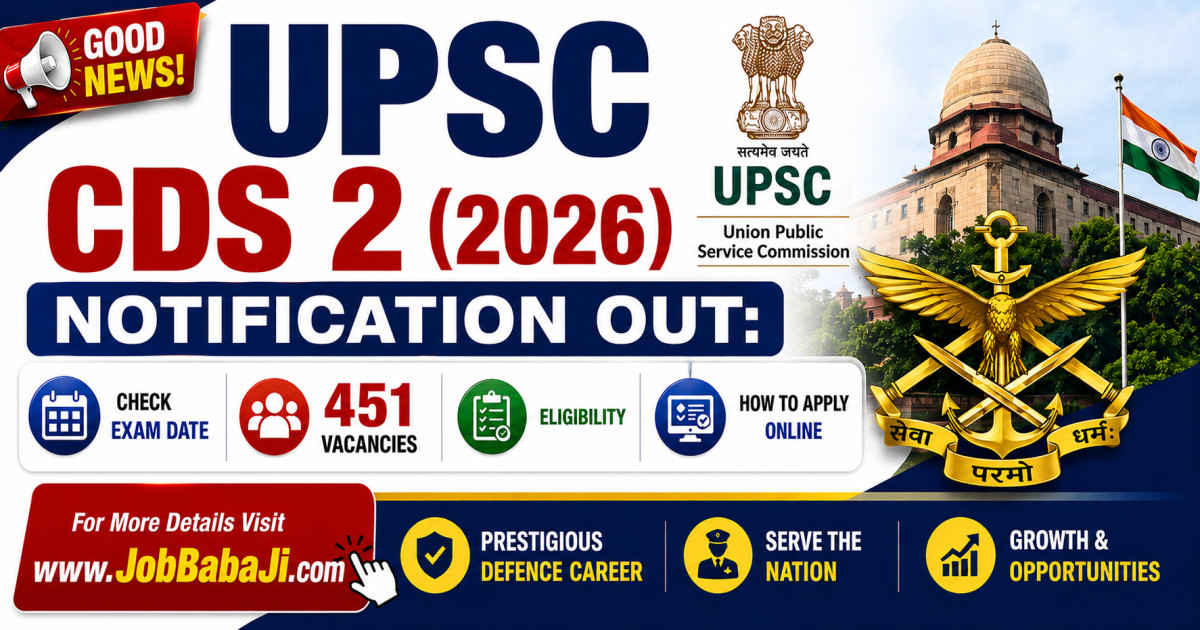
UPSC CDS 2 2026 Check Exam Date, 451 Vacancies, Eligibility, and How to Apply Online | www.JobBabaJi.com

VIEW JOB DETAILS

UPSC CDS 2 2026 Check Exam Date, 451 Vacancies, Eligibility, and How to Apply Online

Post Updated On : May 26, 2026 | 06:37:54 PM
Application Start Date : May 20, 2026⚠️ Apply Online Last Date : June 9, 2026

Short Information

Short Information : Union Public Service Commission (UPSC) | Union Public Service Commission (UPSC) has officially released the exam notification for the Combined Defence Services Examination (II), 2026. If you dream of serving the nation as a commissioned officer in the Indian Armed Forces (Army, Navy, or Air Force), this is your golden opportunityInterested and eligible candidates can submit their applications online through the official UPSC portal. Below, we have broken down all the critical details from the official notification, including vacancies, age limits, qualifications, selection criteria, and a step-by-step application guide.

Union Public Service Commission (UPSC)

Examination of Combined Defence Service CDS-II 2026

Advt No. : UPSC Combined Defence Services CDS II Examination 2026 | Short Details

WWW.JOBBABAJI.COM

Important Deails

Application Fee

  • Online Application Form Start Date : 20/05/2026
  • Registration(Apply Online) Last Date : 09/06/2026
  • Last Date for Fee Payment : 09/06/2026
  • Exam Date : 13/09/2026
  • Admit Card Release Date : Notified soon
  • General / OBC / EWS Candidates : 200/-
  • SC / ST / PH : 0/-
  • All Category Female : 0/-

Payment Mode

  • Pay the Examination Fee Through Debit Card, Credit Card, Net Banking or Pay Offline Through E Challan

UPSC Combined Defence Services CDS II Notification 2026 | Age Limit As On UPSC Rules

  • IMA: Unmarried male candidates born between July 2, 2003, and July 1, 2008.
  • INA: Unmarried male candidates born between July 2, 2003, and July 1, 2008.
  • AFA: Candidates born between July 2, 2003, and July 1, 2007.
  • OTA (Men): Unmarried male candidates born between July 2, 2002, and July 1, 2008.
  • OTA (Women): Unmarried women candidates born between July 2, 2002, and July 1, 2008.
  • Age Relaxation Extra as per UPSC Examination 2026

UPSC CDS II Recruitment 2026Educational Qualifications

  • For IMA & OTA: Must have a Bachelor’s degree in any stream.
  • For Naval Academy: Must have a Bachelor’s degree in Engineering.
  • For Air Force: Must have a Bachelor’s degree in any stream, but should have studied Physics and Math in 10+2.
  • For more details read the official notification before applying.

UPSC Combined Defence Services CDS II Recruitment 2026Vacancy Details

Post Name

No. Of Post

Indian Military Academy IMA

100

Air Force Academy

32

Indian Naval Academy

26

Officers Training Academy OTA

293

UPSC CDS II Recruitment 2026Mode Of Selection & Exam Pattern

The written test will feature Objective Type (Multiple Choice Questions) only.

For IMA, INA, and AFA:

  • English: 2 Hours | 100 Marks
  • General Knowledge: 2 Hours | 100 Marks
  • Elementary Mathematics: 2 Hours | 100 Marks
  • Total Marks: 300

For Officers' Training Academy (OTA):

  • English: 2 Hours | 100 Marks
  • General Knowledge: 2 Hours | 100 Marks
  • Total Marks: 200

 Negative Marking: There is a penalty for wrong answers. One-third (0.33) of the marks assigned to a question will be deducted for every incorrect response.

How to Apply for UPSC CDS II 2026
(UPSC CDS II 2026 के लिए आवेदन कैसे करें)

Applications must be filled out exclusively online through the official UPSC website. Follow these steps:(आवेदन केवल UPSC की आधिकारिक वेबसाइट के माध्यम से ऑनलाइन भरे जाएंगे। नीचे दिए गए चरणों का पालन करें:)

  1. Interested candidates who wish to apply for the UPSC post can submit their application online before 09 June 2026. (जो उम्मीदवार UPSC पद के लिए आवेदन करना चाहते हैं, वे 09 जून 2026 से पहले ऑनलाइन आवेदन कर सकते हैं)
  2. Use the “Click Here” link provided below under the important links section to apply directly. (सीधे आवेदन करने के लिए नीचे दिए गए महत्वपूर्ण लिंक सेक्शन में “Click Here” लिंक का उपयोग करें)
  3. Alternatively, go to the official registration website: UPSC Online Portal. (वैकल्पिक रूप से, उम्मीदवार UPSC के आधिकारिक ऑनलाइन पोर्टल पर भी जा सकते हैं)
  4. One-Time Registration (OTR): If you have not registered before, create your account to generate your permanent Universal Registration Number (URN). (वन टाइम रजिस्ट्रेशन (OTR): यदि आपने पहले पंजीकरण नहीं किया है, तो अपना स्थायी यूनिवर्सल रजिस्ट्रेशन नंबर (URN) बनाने के लिए अकाउंट बनाएं)
  5. Fill Common Application Form (CAF): Complete your personal details, educational qualifications, and service preferences. (कॉमन एप्लीकेशन फॉर्म (CAF) भरें: अपनी व्यक्तिगत जानकारी, शैक्षणिक योग्यता और सेवा वरीयताएं भरें)
  6. Live Photo Capture & Uploads: Upload your digital signature (signed three times vertically on white paper with black ink). You will also need to upload a photograph and capture a live photo through webcam/mobile during the application process. (लाइव फोटो कैप्चर एवं अपलोड: अपने डिजिटल हस्ताक्षर अपलोड करें (सफेद कागज पर काली स्याही से तीन बार लंबवत हस्ताक्षर किए हुए)। आवेदन प्रक्रिया के दौरान फोटो अपलोड करने के साथ लाइव फोटो भी वेबकैम/मोबाइल से कैप्चर करनी होगी)
  7. Pay Fee & Choose Centre: Pay the ₹200 application fee (if applicable) and select your preferred examination center. Examination centers are allotted on a “first-apply-first-allot” basis. (शुल्क भुगतान एवं परीक्षा केंद्र चयन: ₹200 आवेदन शुल्क (यदि लागू हो) जमा करें और अपना पसंदीदा परीक्षा केंद्र चुनें। परीक्षा केंद्र “पहले आवेदन - पहले आवंटन” के आधार पर दिए जाएंगे)
  8. Submit Form: Review all details carefully before final submission and take a printout of the final submitted application form for future reference. (फॉर्म जमा करें: अंतिम सबमिशन से पहले सभी विवरण ध्यानपूर्वक जांच लें और भविष्य के उपयोग के लिए अंतिम जमा किए गए आवेदन फॉर्म का प्रिंट आउट सुरक्षित रखें)
  9. For the latest updates on Latest jobsadmit cardanswer keylatest result and admission, always visit jobbabaji.com. (लेटेस्ट जॉब्स, एडमिट कार्ड, आंसर की, लेटेस्ट रिजल्ट और एडमिशन की जानकारी के लिए हमेशा jobbabaji.com वेबसाइट पर विजिट करें)

Interested Candidates Can Read the Full Notification Before Apply Online.

🔗 Quick & Direct Links: Apply Online, Download & Official Notification

Apply Online

Download Notification

Crop & Resize Image  |  Birth Day Calculator  |  Image to PDF  |  Add Photo, Name & DOB

Join Our Official Channel to Get Instant Job Alerts

Official Website

For any Query and Feedback Contact us - jobbabajee@gmail.com

UPSC CDS 2nd Examination 2026 Job Banner

UPSC CDS 2 2026 Check Exam Date, 451 Vacancies, Eligibility, and How to Apply Online


Please Disable Ad Blocker

Your ad blocker is enabled. Please disable it to continue.

हम अपनी वेबसाइट को आपके लिए मुफ्त रखने के लिए विज्ञापनों पर निर्भर हैं।

×

Which of these extensions do you have?

Browser image for the AdBlock extension
  1. Click the AdBlock icon AdBlock image in the browser extension area on the upper right-hand corner. (You may see a small number covering part of the icon.)
  2. Select Don't run on pages on this site.
  3. In the "Don’t run AdBlock on..." dialog box, select Exclude. The AdBlock icon changes to a 👍 (thumbs up) image.
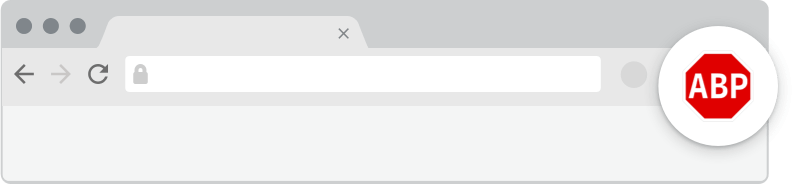
Browser image for the AdBlock Plus extension
  1. Click the Adblock Plus icon AdBlock Plus image in the browser extension area on the upper right-hand corner. (You may see a small number covering part of the icon.)
  2. Click the “power” button so that it slides left.
  3. Click the Refresh Page button.
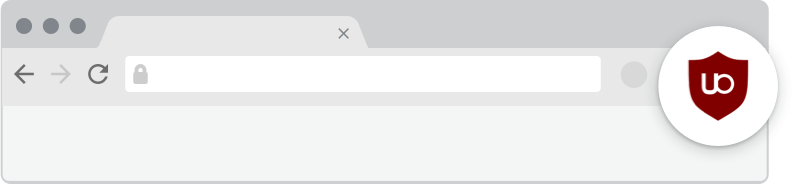
Browser image for the uBlock Origin extension
  1. Click the uBlock Origin icon uBlock Origin image in the browser extension area on the upper right-hand corner. (You may see a small number covering part of the icon.)
  2. Click the “power” button . It turns gray, indicating that ads on that site are no longer being blocked.
  3. Click the Refresh Page button.
  1. Click the icon of the ad blocker extension installed on your browser.
    You’ll usually find this icon in the upper right-hand corner of your screen. You may have more than one ad blocker installed.
  2. Follow the instructions for disabling the ad blocker on the site you’re viewing.
    You may have to select a menu option or click a button.
  3. Refresh the page, either by following prompts or clicking your browser’s “refresh” or “reload” button.