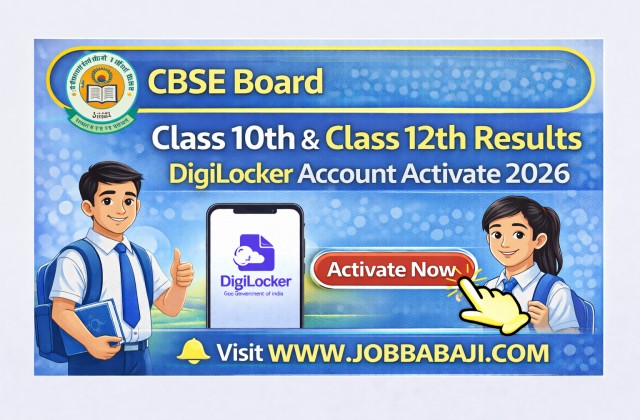
CBSE Board Class 10th Results Declared Digilocker Account Activate 2026 | www.JobBabaJi.com

VIEW JOB DETAILS

CBSE Board Class 10th Results Declared Digilocker Account Activate 2026

Post Updated On : April 15, 2026 | 02:49 PM
Application Start Date : February 17, 2026⚠️ Apply Online Last Date : March 11, 2026

Short Information

Short Information : Central Board Of Secondary Education (CBSE) | Central Board of Secondary Education CBSE Central Board will soon release the results for the Class 10th Xth High School and Class 12th XIIth Intermediate Annual Board Exam 2026. The CBSE will declare the Secondary and Senior Secondary board Exam result April / May 2026. Candidates will be able to check their results/marks by entering their roll number on the official website. The official result date will be announced Soon. All registered students are advised to activate their DigiLocker accounts as soon as possible so that, once the results are released, they can receive their mark sheets and certificates in digital format via DigiLocker.

Central Board Of Secondary Education (CBSE)

CBSE Board Class Xth and Class XIIth Result 2026

Advt No. : CBSE Results 2026 | Short Details

WWW.JOBBABAJI.COM

Important Deails

Application Fee

  • Class 10th High School Exam Between : 17/02/2026 to 11/03/2026
  • Class 12th Intermediate Exam Between : 17/02/2026 to 10/04/2026
  • Digilocker Account Activate Through Security Pin : 14/04/2026
  • Class 10th Result Declared : 15/04/2026
  • Class 12th Result Declared : April / May 2026
  • No Application Fee for the Checking CBSE Board Term II Class X & XII Exam Result & Activate Your DIGI Locker Account Through Security Pin.

How to Activate DIGILOCKER Account Through School Security Pin 2026
(स्कूल सिक्योरिटी पिन के माध्यम से DigiLocker अकाउंट 2026 कैसे एक्टिवेट करें)

  • CBSE has issued a notice on 14 April 2026, stating that Class 10 & 12 Board Exam 2026 results, certificates, and migration will be available through DigiLocker. (CBSE ने 14 अप्रैल 2026 को नोटिस जारी किया है जिसमें बताया गया है कि कक्षा 10 और 12 के बोर्ड परीक्षा 2026 के परिणाम, प्रमाणपत्र और माइग्रेशन DigiLocker के माध्यम से उपलब्ध होंगे)
  • All CBSE Board Class 10 and 12 students who appeared in the exam must create their DigiLocker account. (CBSE बोर्ड के सभी कक्षा 10 और 12 के छात्र जिन्होंने परीक्षा दी है, उन्हें अपना DigiLocker अकाउंट बनाना अनिवार्य है)
  • CBSE Board students can create their DigiLocker account by following simple steps mentioned below. (CBSE बोर्ड के छात्र नीचे दिए गए आसान स्टेप्स को फॉलो करके अपना DigiLocker अकाउंट बना सकते हैं)
  • Once the account is created, candidates can download their result, marksheet, certificate, and migration online. (अकाउंट बनने के बाद उम्मीदवार अपना रिजल्ट, मार्कशीट, प्रमाणपत्र और माइग्रेशन ऑनलाइन डाउनलोड कर सकते हैं)

Step by Step to Activate DigiLocker Account
(DigiLocker अकाउंट एक्टिवेट करने के स्टेप्स)

  • Step 1: Student will get the DigiLocker Account Confirmation link in the “Some Useful Important Links” section. (स्टेप 1: छात्र को “Some Useful Important Links” सेक्शन में DigiLocker अकाउंट कन्फर्मेशन लिंक मिलेगा)
  • Step 2: Select your class (X or XII). (स्टेप 2: अपनी कक्षा चुनें (10वीं या 12वीं))
  • Step 3: Enter your school code (available on admit card if unknown). (स्टेप 3: अपना स्कूल कोड दर्ज करें (यदि नहीं पता तो एडमिट कार्ड में देखें))
  • Step 4: Enter your board exam roll number. (स्टेप 4: अपना बोर्ड परीक्षा रोल नंबर दर्ज करें)
  • Step 5: Enter the 6-digit security PIN provided by your school. (स्टेप 5: स्कूल द्वारा दिया गया 6 अंकों का सिक्योरिटी पिन दर्ज करें)
  • Step 6: Enter your mobile number. (स्टेप 6: अपना मोबाइल नंबर दर्ज करें)
  • Step 7: Enter the OTP received on your mobile number. (स्टेप 7: मोबाइल पर प्राप्त OTP दर्ज करें)
  • Step 8: Your DigiLocker account will be successfully activated. (स्टेप 8: आपका DigiLocker अकाउंट सफलतापूर्वक एक्टिवेट हो जाएगा)

Now waiting for the candidate, whenever the CBSE Board will release the result of 2026 examination, candidates can also check their result through Digilocker as well as download the passing certificate / mark sheet and migration.(अकाउंट एक्टिवेट होने के बाद उम्मीदवार DigiLocker से अपना CBSE 2026 रिजल्ट, मार्कशीट, प्रमाणपत्र और माइग्रेशन डाउनलोड कर सकते हैं)

How to Check CBSE Board 10th & 12th Result 2026
(CBSE बोर्ड 10वीं और 12वीं रिजल्ट 2026 कैसे देखें)

  • CBSE Board Exam 2026 result may be released anytime in April/May 2026. (CBSE बोर्ड परीक्षा 2026 का रिजल्ट अप्रैल/मई 2026 में कभी भी जारी हो सकता है)
  • Candidates can check their result through:(उम्मीदवार अपना रिजल्ट इन माध्यमों से देख सकते हैं:)
  1. CBSEResult Website
  2. DigiLocker
  • Students must have their roll number to check the result. (रिजल्ट देखने के लिए छात्रों के पास रोल नंबर होना अनिवार्य है)
  • All CBSE students are advised to activate their DigiLocker account in advance. (सभी CBSE छात्रों को सलाह दी जाती है कि वे पहले से अपना DigiLocker अकाउंट एक्टिवेट कर लें)

Enrolled Candidates can Download Result & View Result Details.

🔗 Quick & Direct Links: Apply Online, Download & Official Notification

Download Class 10th Result

Activate Digilocker Account

User Manual (How To Create Account)

Join Job Baba Ji Channel

Official Website

For any Query and Feedback Contact us - jobbabajee@gmail.com

CBSE Board Result 2026 Digilocker Account Activate Job Banner

CBSE Board Class 10th Results Declared Digilocker Account Activate 2026

Please Disable Ad Blocker

Your ad blocker is enabled. Please disable it to continue.

हम अपनी वेबसाइट को आपके लिए मुफ्त रखने के लिए विज्ञापनों पर निर्भर हैं।

×

Which of these extensions do you have?

Browser image for the AdBlock extension
  1. Click the AdBlock icon AdBlock image in the browser extension area on the upper right-hand corner. (You may see a small number covering part of the icon.)
  2. Select Don't run on pages on this site.
  3. In the "Don’t run AdBlock on..." dialog box, select Exclude. The AdBlock icon changes to a 👍 (thumbs up) image.
Browser image for the AdBlock Plus extension
  1. Click the Adblock Plus icon AdBlock Plus image in the browser extension area on the upper right-hand corner. (You may see a small number covering part of the icon.)
  2. Click the “power” button so that it slides left.
  3. Click the Refresh Page button.
Browser image for the uBlock Origin extension
  1. Click the uBlock Origin icon uBlock Origin image in the browser extension area on the upper right-hand corner. (You may see a small number covering part of the icon.)
  2. Click the “power” button . It turns gray, indicating that ads on that site are no longer being blocked.
  3. Click the Refresh Page button.
  1. Click the icon of the ad blocker extension installed on your browser.
    You’ll usually find this icon in the upper right-hand corner of your screen. You may have more than one ad blocker installed.
  2. Follow the instructions for disabling the ad blocker on the site you’re viewing.
    You may have to select a menu option or click a button.
  3. Refresh the page, either by following prompts or clicking your browser’s “refresh” or “reload” button.